If you have Dropbox or Google Drive, you can use our Automatic Data Backup tool to have your transactions downloaded to your account each night. We will create a ClearCheckbook folder where all the CSV files will be saved.
You can find the Automatic Backups tool by clicking on Tools at the top of the page, then click on the Automatic Backups link.Google Drive, Microsoft OneDrive and Dropbox. We are working on enabling other systems and will update this page when they become available. To enable backups to a storage service, click on the button for the storage service you would like to enable. You must already have an account with the desired service in order to enable backups to it.
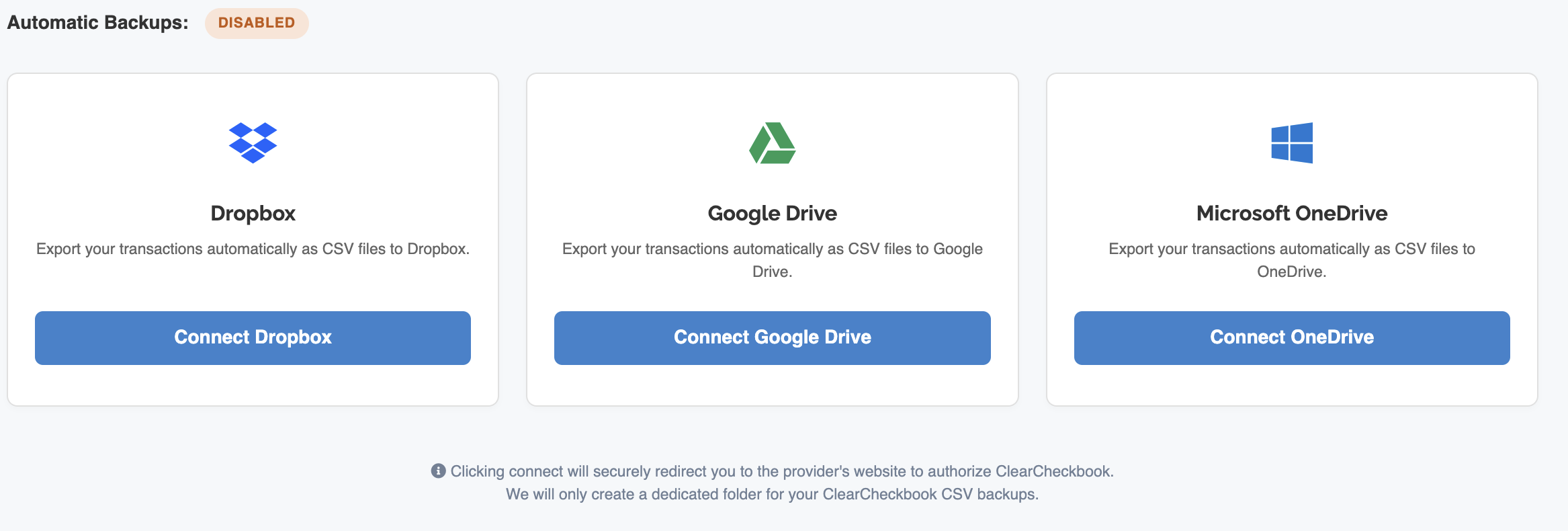
Right now, the three buttons you can click on are Connect Dropbox, Connect Google Drive and Connect Microsoft OneDrive
Backups are made to the selected service nightly and only if you have added a transaction since the last time the backup was made.
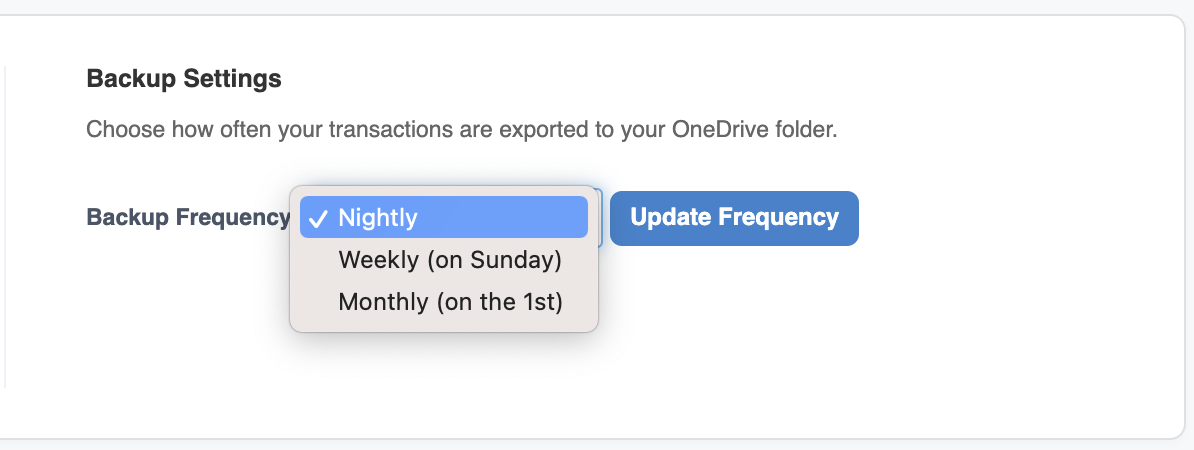
You can change the backup frequency between Nightly, Weekly and Monthly. Weekly backups will occur on each Sunday night if you've added new transactions since the last backup. Monthly backups will occur on the first of the month if you've added new transactions since the last backup.
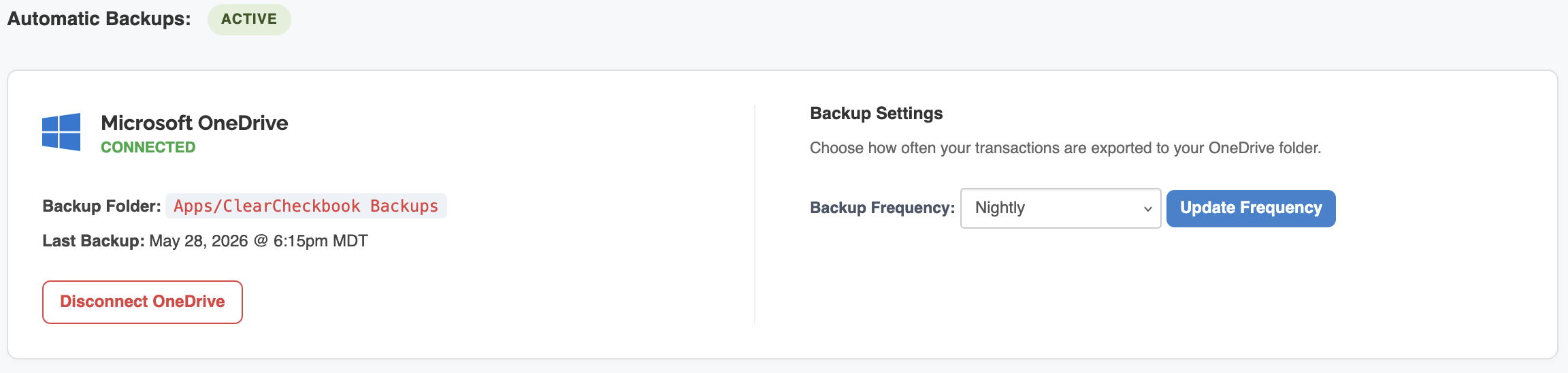
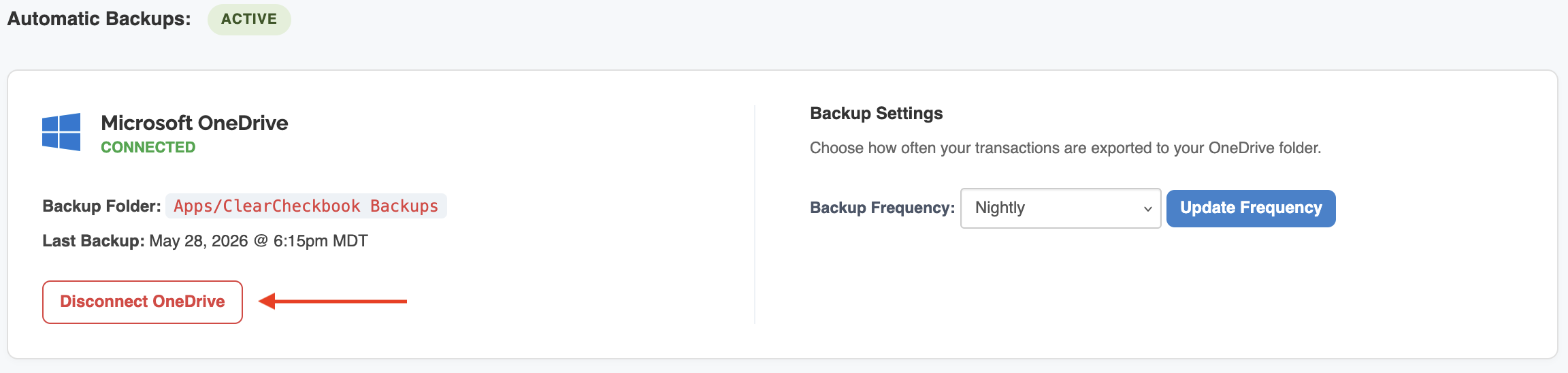
When you have enabled backups to one of the available services, the Automatic Backups page will show you some additional information.
The service you enabled will be shown with their icon. In the example above, you can see that backups to OneDrive are currently enabled.
The date and time of the last backup are also shown. Please refer to the section above to learn when backups are made.You can disable backups to a service by clicking on the Disconnect button.