Our Envelope Budgeting tool allows you to easily budget your money using the Envelopes System. The Envelope tool is similar to our existing Budgets tool except the Envelopes system has no reset date and the budget amount is set by how much money you deposit into the category.
You can find the Envelope Budgets by clicking on Tools at the top of the page, then click on the Envelope Budgets link.The envelope budgeting system has been around for decades and was simply a way of having physical envelopes for each of your budget categories. You would fill each envelope with the amount of cash you wanted to limit yourself to spending. Then, when you went to the store you would take your envelopes and spend from them. This would make sure you couldn't overspend on your budgets since you had a physical set amount of cash you could use.
With the advent of online shopping and online bill-pay, that physical system doesn't work as well which is why an online version can be very useful.
Envelope budgeting is broken into four parts which are as follows:
The Envelope Budgets tool lets you select from the categories you've created in ClearCheckbook. The first thing you'll want to do is set up all of the categories you need.
To do this, click on Settings at the top right side of the page and then click on the Categories link. You can learn more about managing your categories through the Settings Manage Your... Categories Settings Knowledge Base section.To add a new envelope budget, click on the Add New Envelope button at the top of the Envelope Budgets page. This will bring up an Add New Envelope form.
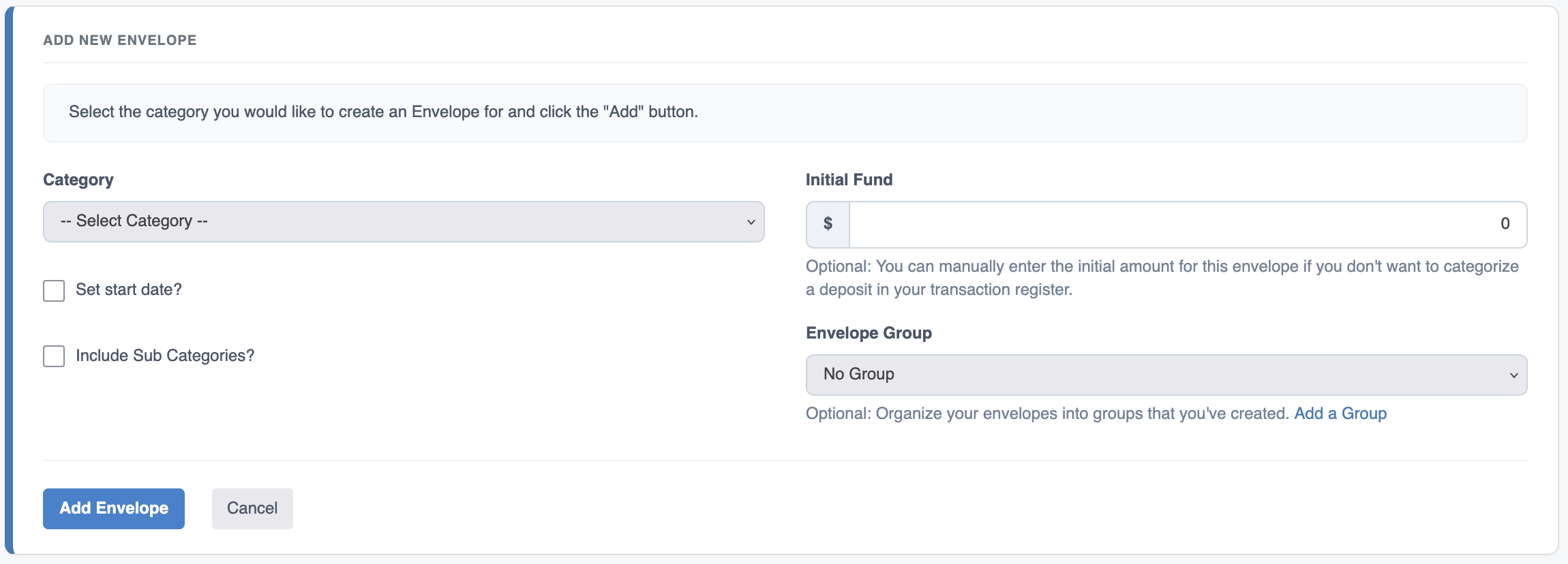
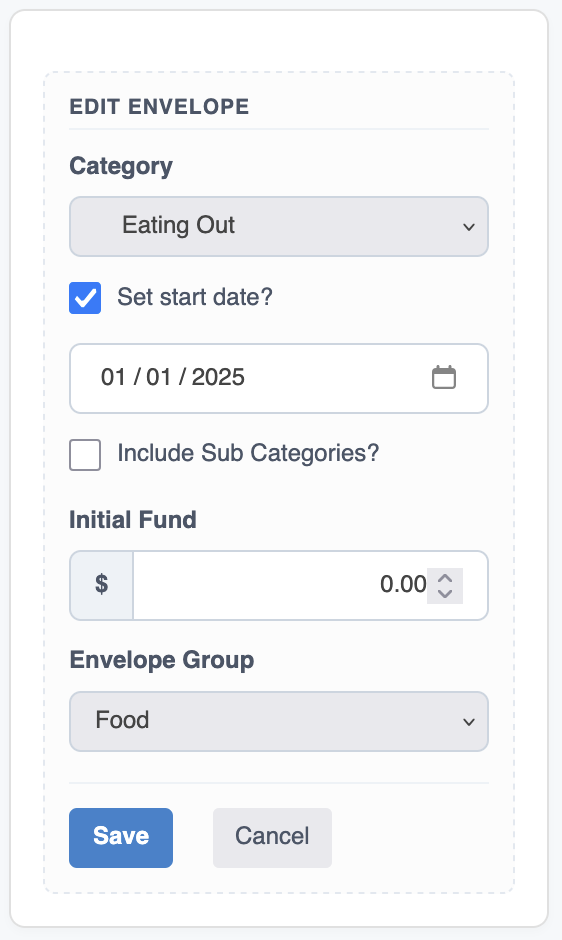
Select the category you would like to create the budget for from the Category drop down list. The other two options are explained in the table below.
| Option | Description |
|---|---|
Set start date? |
When checked, you can select a start date where ClearCheckbook will only look at transactions with a date after the chosen date. |
Include Sub Categories? |
When checked, and if the selected category is a parent, spending from any sub categories will be counted against the budget. |
Initial Fund |
Optional: You can enter the initial funding amount for this envelope if you don't want to categorize a deposit in your transaction register. |
Envelope Group |
Optional for Premium members: Envelope Groups help you to better organize your envelope budgets by assigning them to groups. The budgets will be displayed under their assigned group along with totals for the entire group. See the Envelope Groups section for more information. |
Add Envelope button, the envelope list will refresh and the new envelope will show up with a blue background. Funding your budgets is very easy. Whenever you make a deposit into ClearCheckbook, simply split the transaction and divvy the amount up into your various budgets as needed. If you receive money, add that as a deposit and want all of that money applied to a budget, simply categorize that entire deposit to the budget you want it applied to.
For more information please see the following knowledge base items:
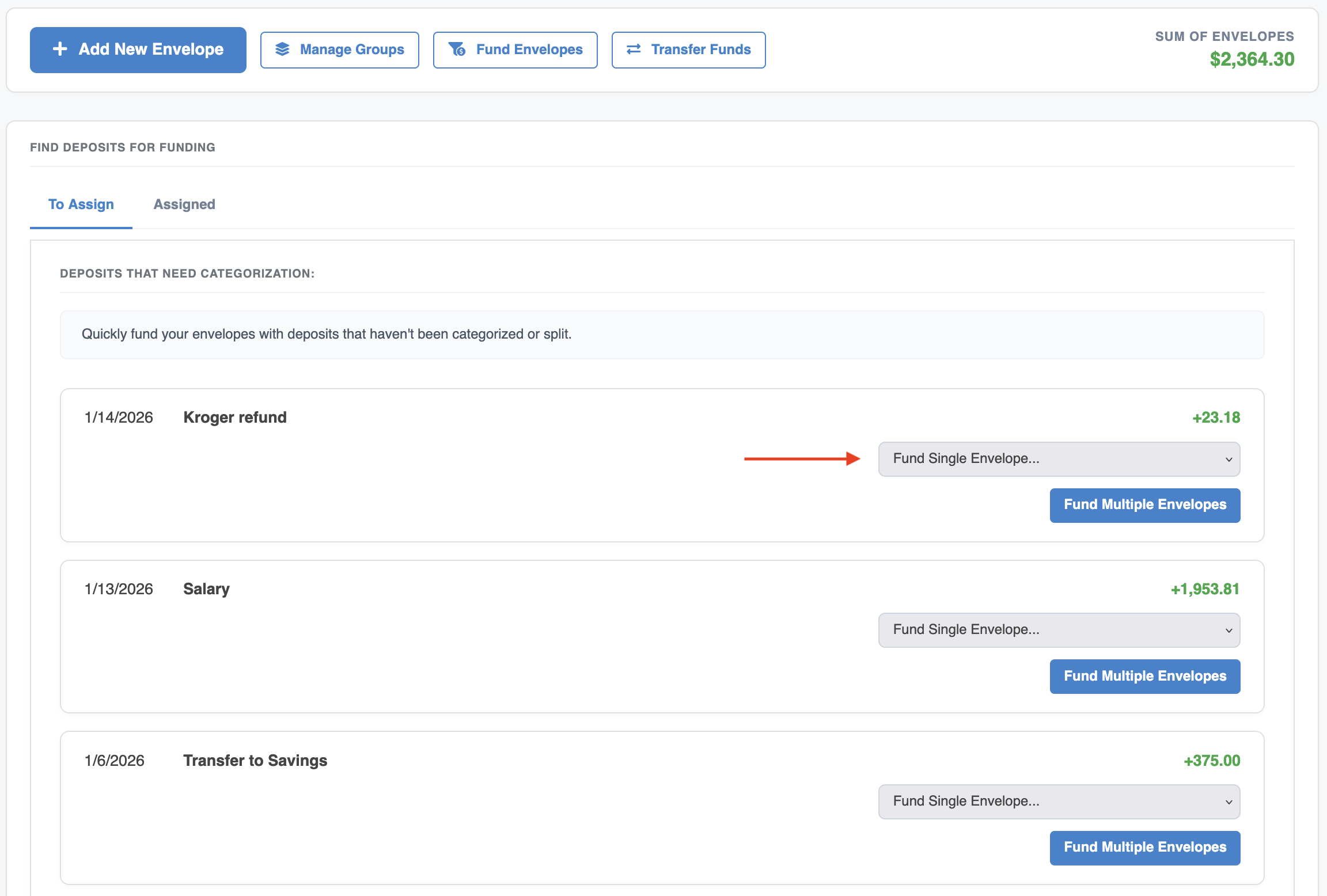
You can also use our "Fund Envelopes" button to quickly find deposits that haven't been assigned any categories, as well as see deposits from the last 45 days that have been categorized.
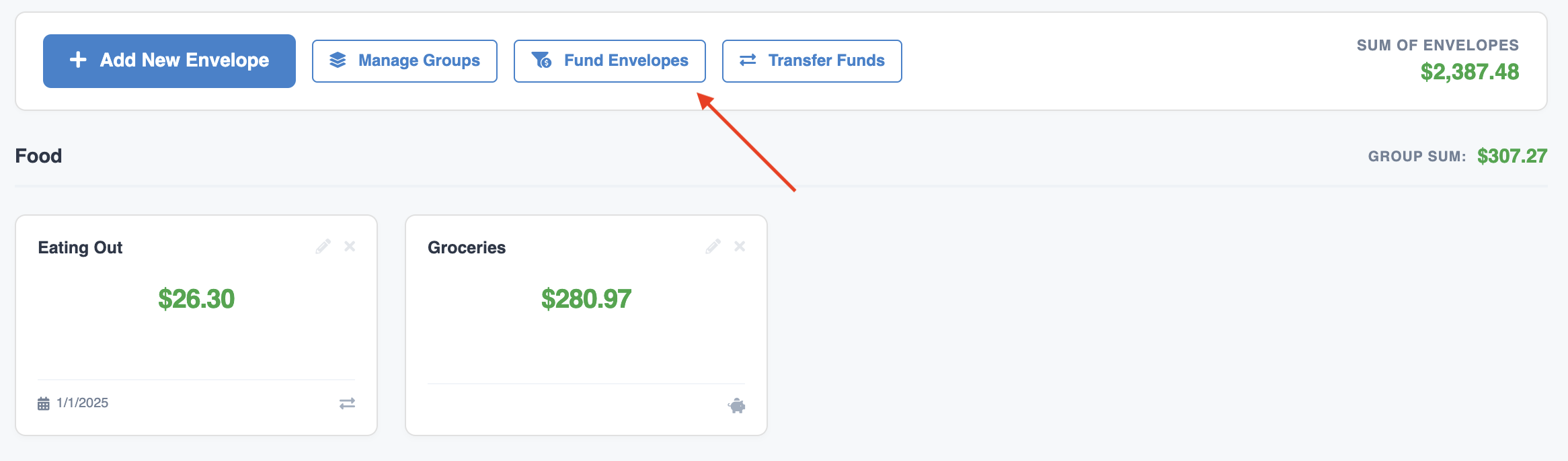
The panel that opens will default to showing you any deposits made to your accounts that do not have any categorization.
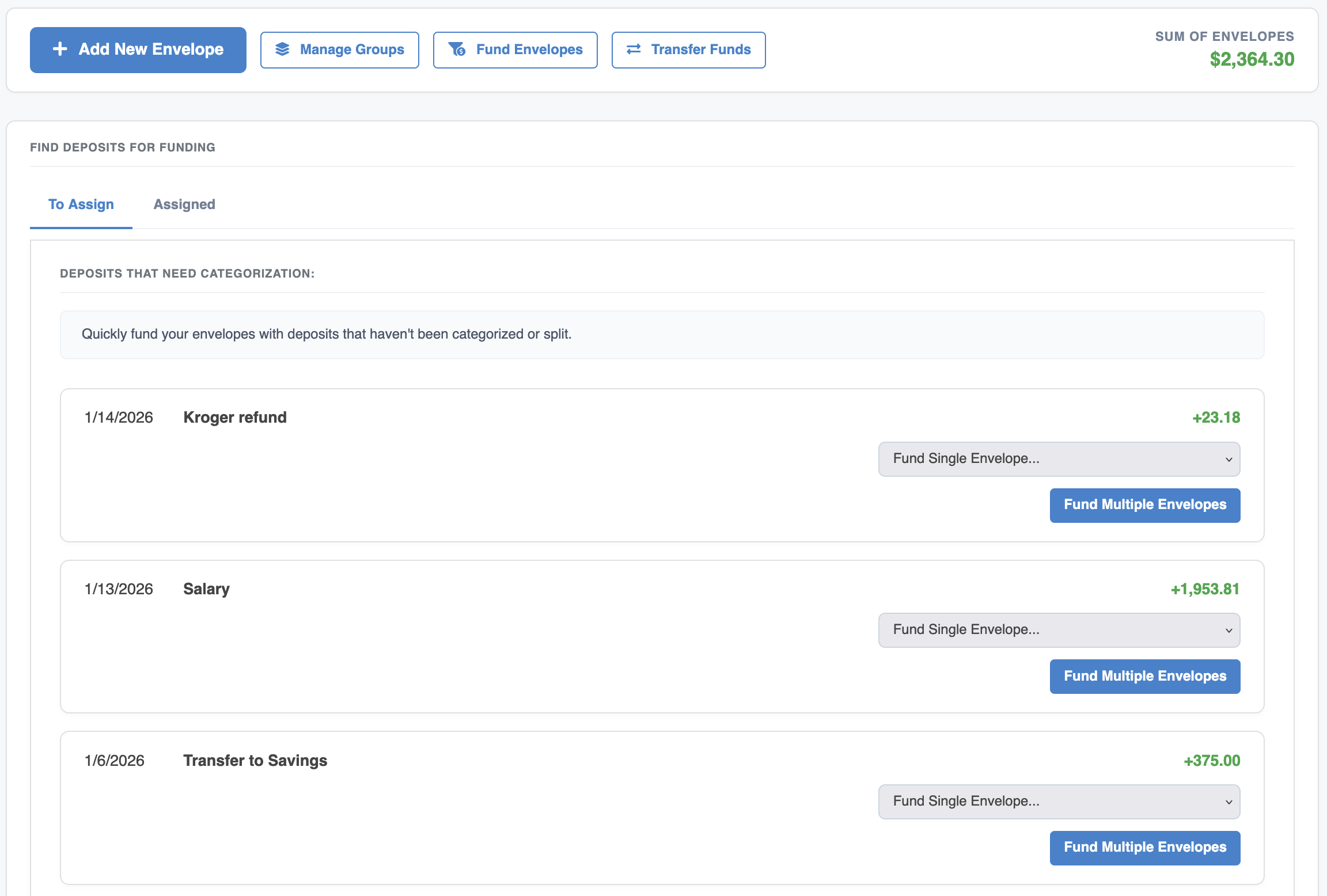
If you need to assign a deposit to a single envelope, like in the case of a refund, you can change the "Fund Single Envelope" drop down to the budget you want to fund. In this example, we got a refund from the grocery store so we're going to assign it back to our Groceries budget.
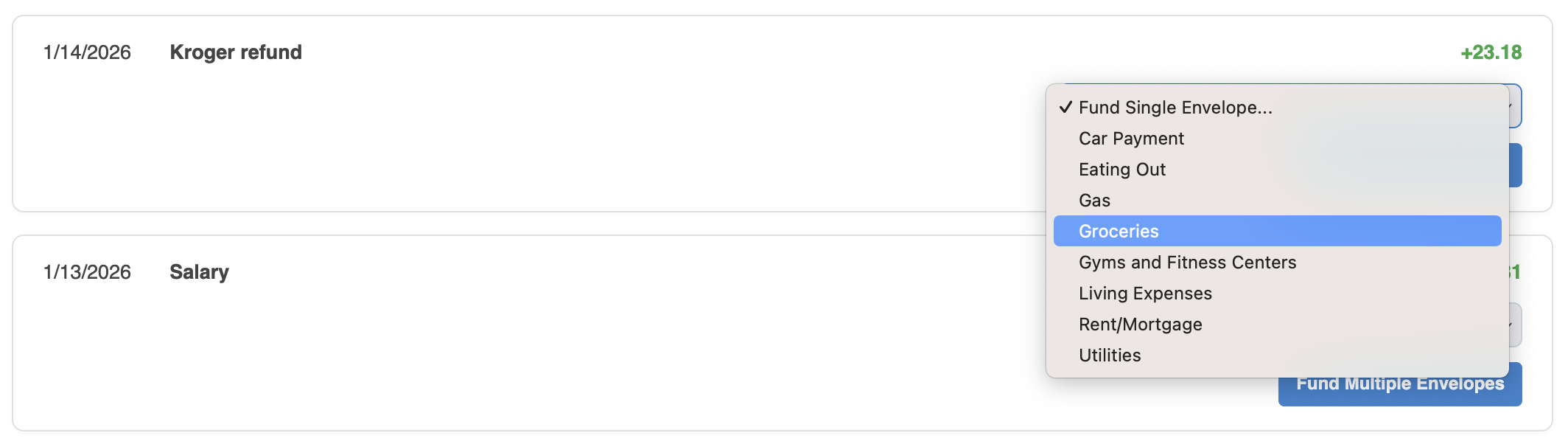
After funding the budget, a success dialog will pop up with an option to undo the assignment.
If you want to fund multiple envelopes with a single deposit, like a salary payment, you can click the "Fund Multiple Envelopes" button.

The form that appears will look very similar to our normal Split Transaction form. You can select which envelopes you want to fund, how much each envelope should receive and give each split an optional description.

If you need to add more splits, just click the "+ Add Another Split" link. As you split the deposit and fund your envelopes, you can see the running sum of split transactions below the list of splits, as well as the difference from the deposit amount.

When you've added all of the splits you need, click the "Save Splits" button to save the split information to the deposit.

To view funded deposits with dates in the last 45 days, click the "Assigned" tab at the top of the Fund Envelopes panel. You'll see the information about the deposit as well as the envelopes each one is funding. If a deposit is categorized with a category that isn't one of your envelope budgets, a red exclamation point will appear next to it.
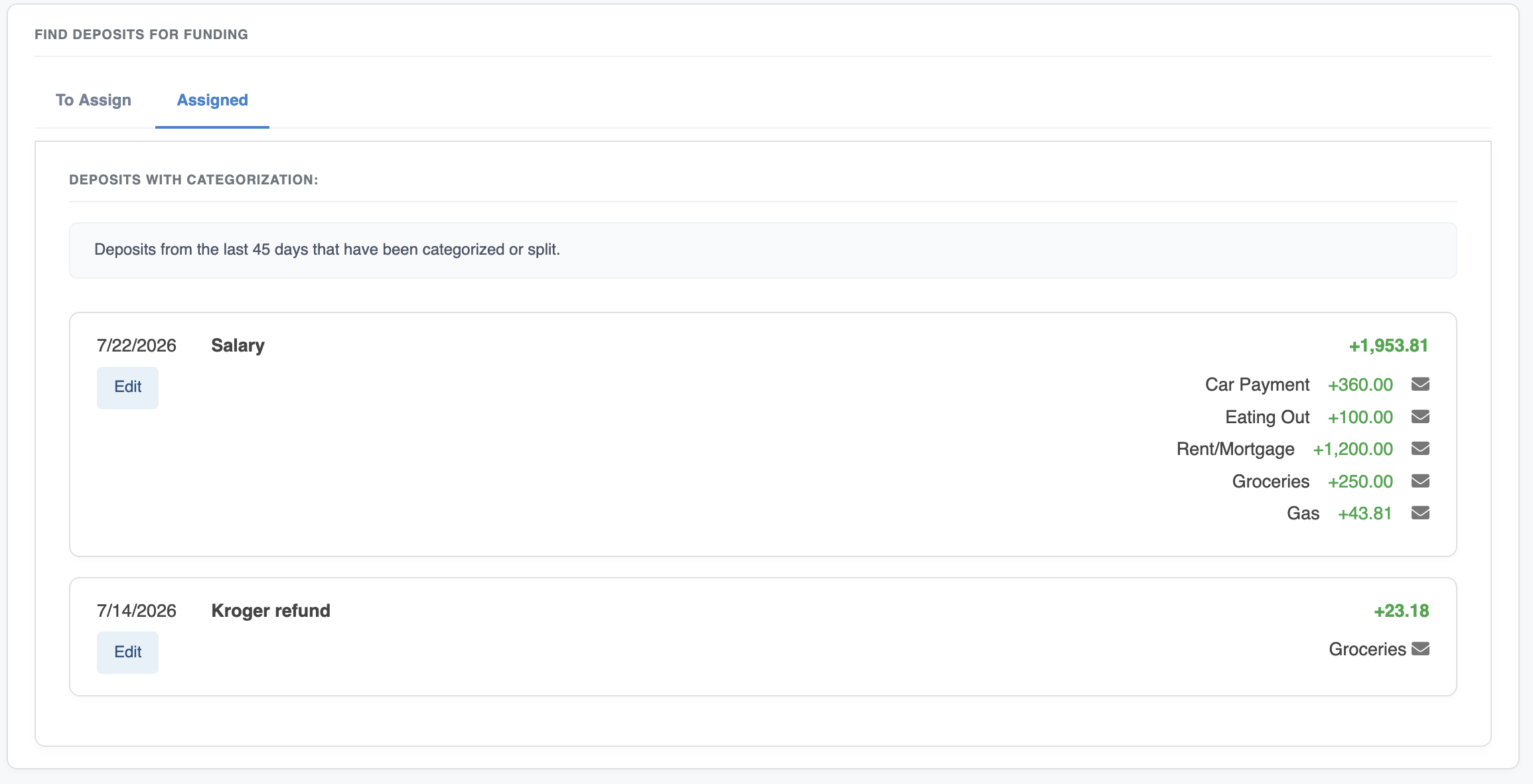
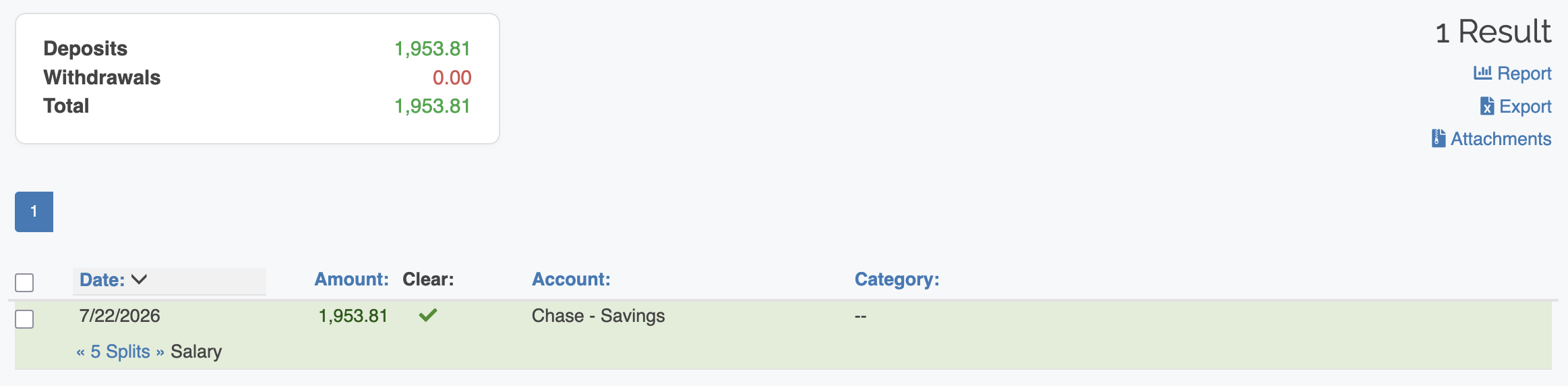
If you need to edit the envelope assignments for a budget, click the "Edit" button to go to a search results page where you can click on the transaction and make the necessary changes.
Have you ever wanted to move excess funds from one budget to another? For example, you have an excess of $30 in your grocery envelope and need to cover a deficit in your Cell Phone envelope. In the real world, all you have to do is shuffle some cash around. You can still easily do this with ClearCheckbook's Envelope budgets through the Transfer Funds option.
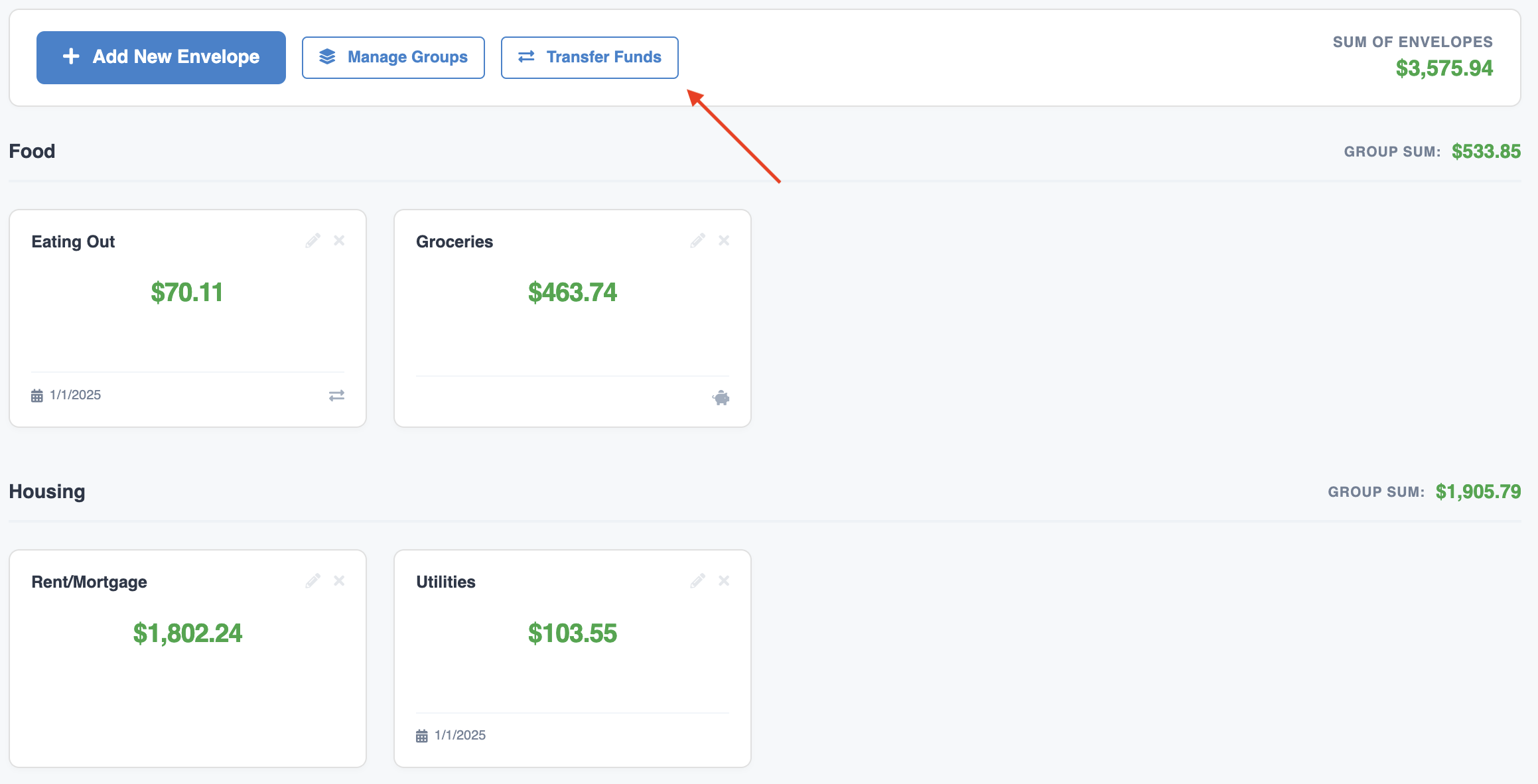
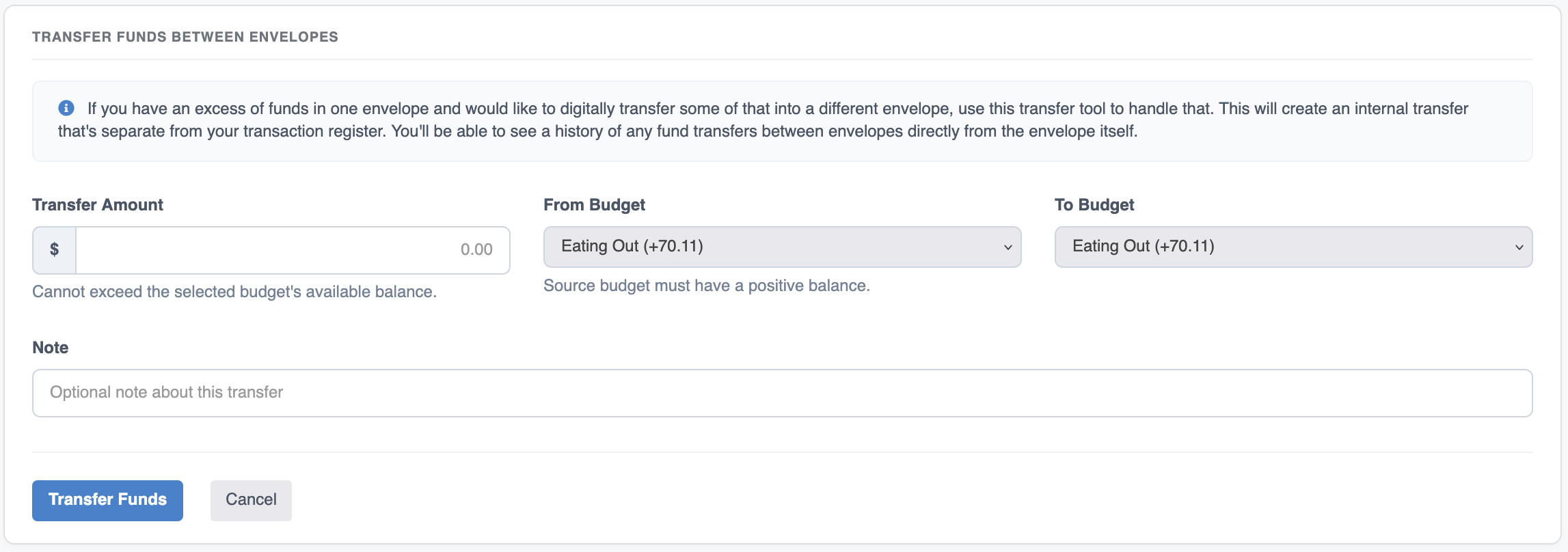
When the transfer fund form opens, you can enter how much money you'd like to transfer, which budget you're transferring from and which budget you're transferring to. You can also enter an optional note about the transfer. Transfers can only be made from envelopes that have a surplus of funds and any transfers cannot make the budget negative.
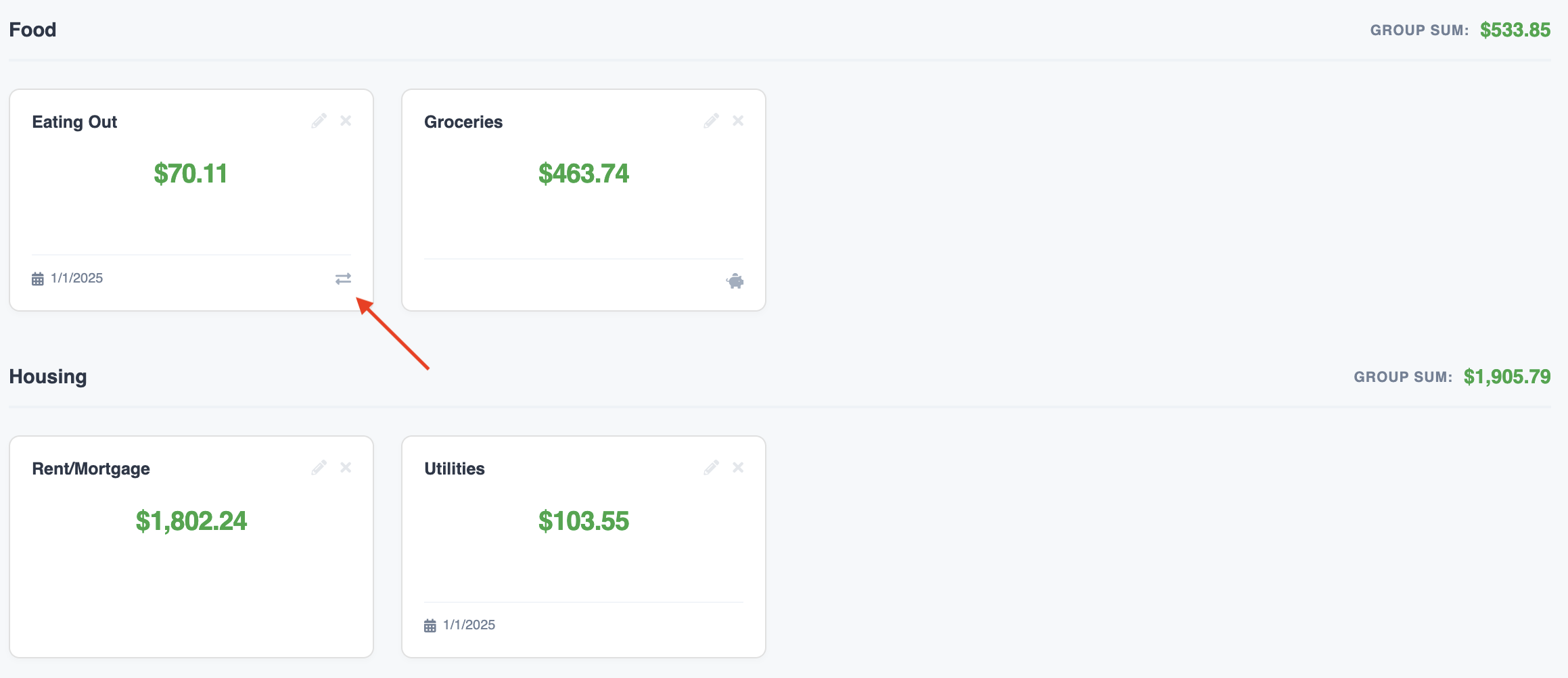
When a transfer is made, a new icon will appear in the envelope budgets that the transfer affects, and the envelope amounts will be adjusted accordingly.
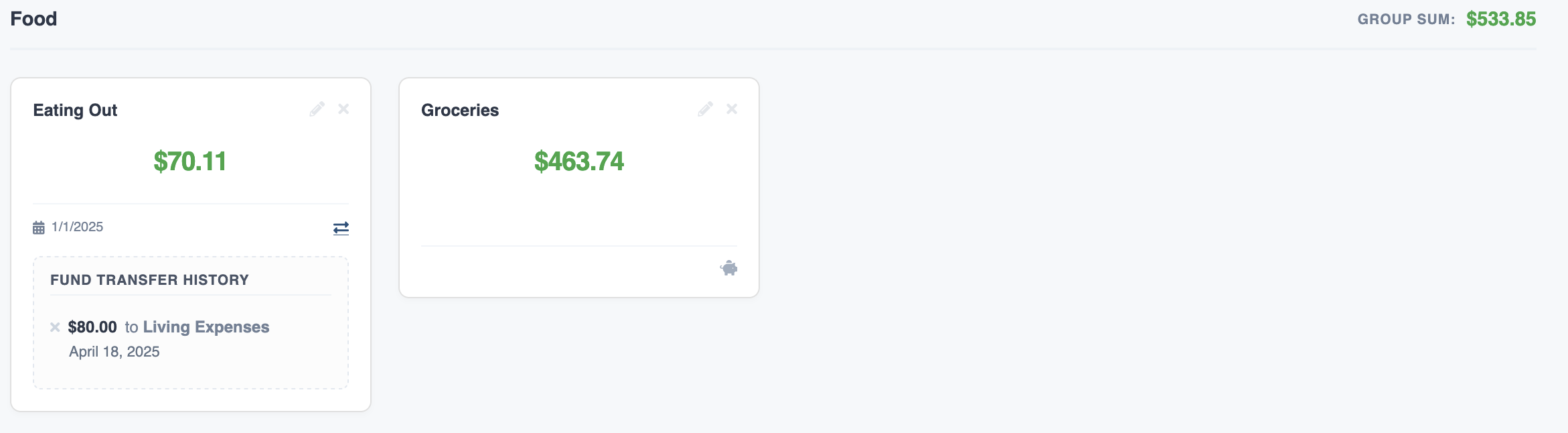
Clicking on the transfer icon will show the details of any transfers made to or from that budget.
Once a budget has been created, any time you add a transaction and categorize it with any of your budgeted categories, that amount will be calculated into the budget.
For example, lets assume you have an envelope budget for your Groceries category and it has been funded with $50. If you add a $30 withdrawl and categorize it as Groceries, the budget will be updated and show $20 remaining.
If you set a start date on the budget, only transactions added after that date will be used when calculating the budgets.The envelope list displays all of your budgets and how much is remaining in each budget. There are several other pieces of information which are explained in the screenshot and table below.

| Number | Description |
|---|---|
1 |
This is the category the budget is applied to. Clicking on this name will take you to a list of all transactions that are being calculated for this budget. |
2 |
If you select a start date for the budget, that date will appear here. |
3 |
If the budget has the Include Sub Categories? option selected, this icon will appear here. |
4 |
These icons let you edit or delete the budget. |
5 |
The amount remaining for the budget. If you spend more than the budgeted amount, the amount will turn red with a negative symbol in front of it. |
6 |
If you manually set the initial funding for the budget, this icon is shown. You can hover over the icon to see the initial funding amount. |
To edit a budget, click on the icon. This will bring up a new form where you can change the budget as needed.
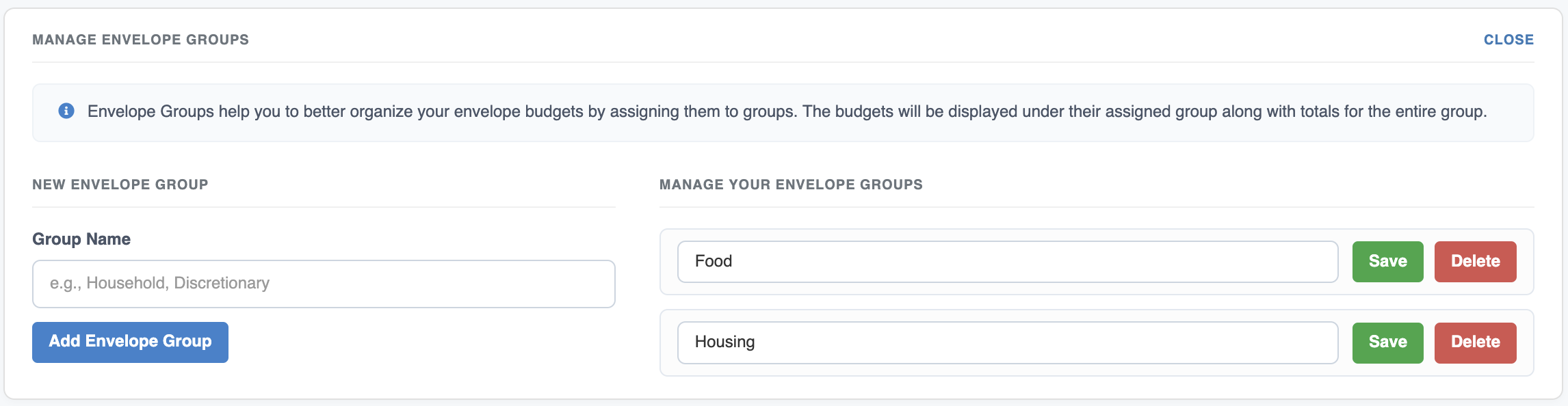
You can manage your envelope groups by clicking on the Manage Envelope Groups link at the top of the Envelope Budgets page. This will bring up a form where you can add new groups as well as manage your existing groups.
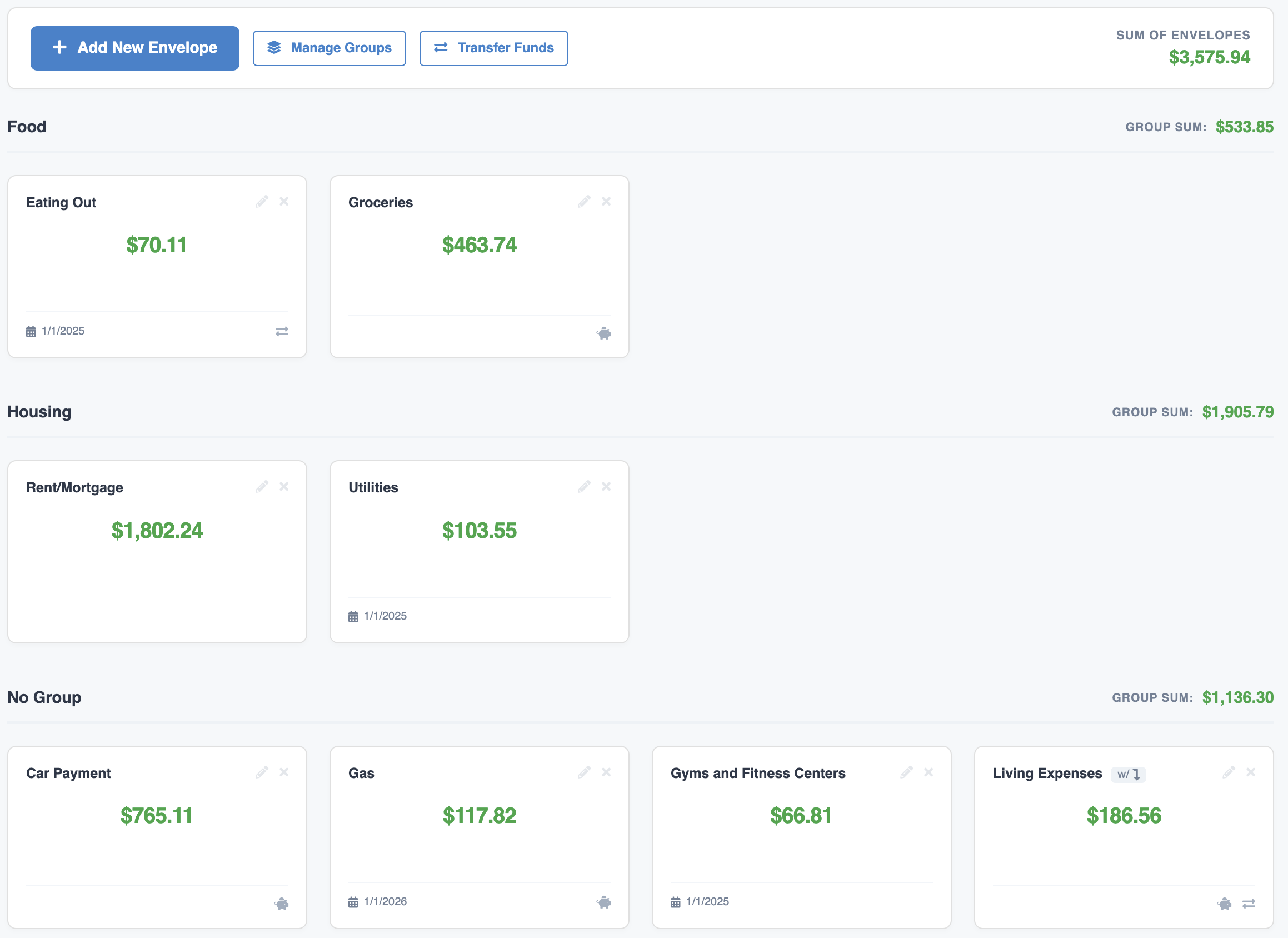
Once you've assigned budgets to groups, they will appear under that group in the budget list. The sum of all the budgets contained within that group will also appear next to the group name.
Take control of your finances with our Envelope Budgets tool. It's an intuitive way to track spending using digital cash envelopes. Set up category-based budgets, fund them through income splits, and monitor your progress to avoid overspending. Perfect if want visibility, structure, and smarter budgeting all in one place.
Direct link to YouTube